
Back to setup guides
macOS Apple Mail
1.Open Mail and start Add Account
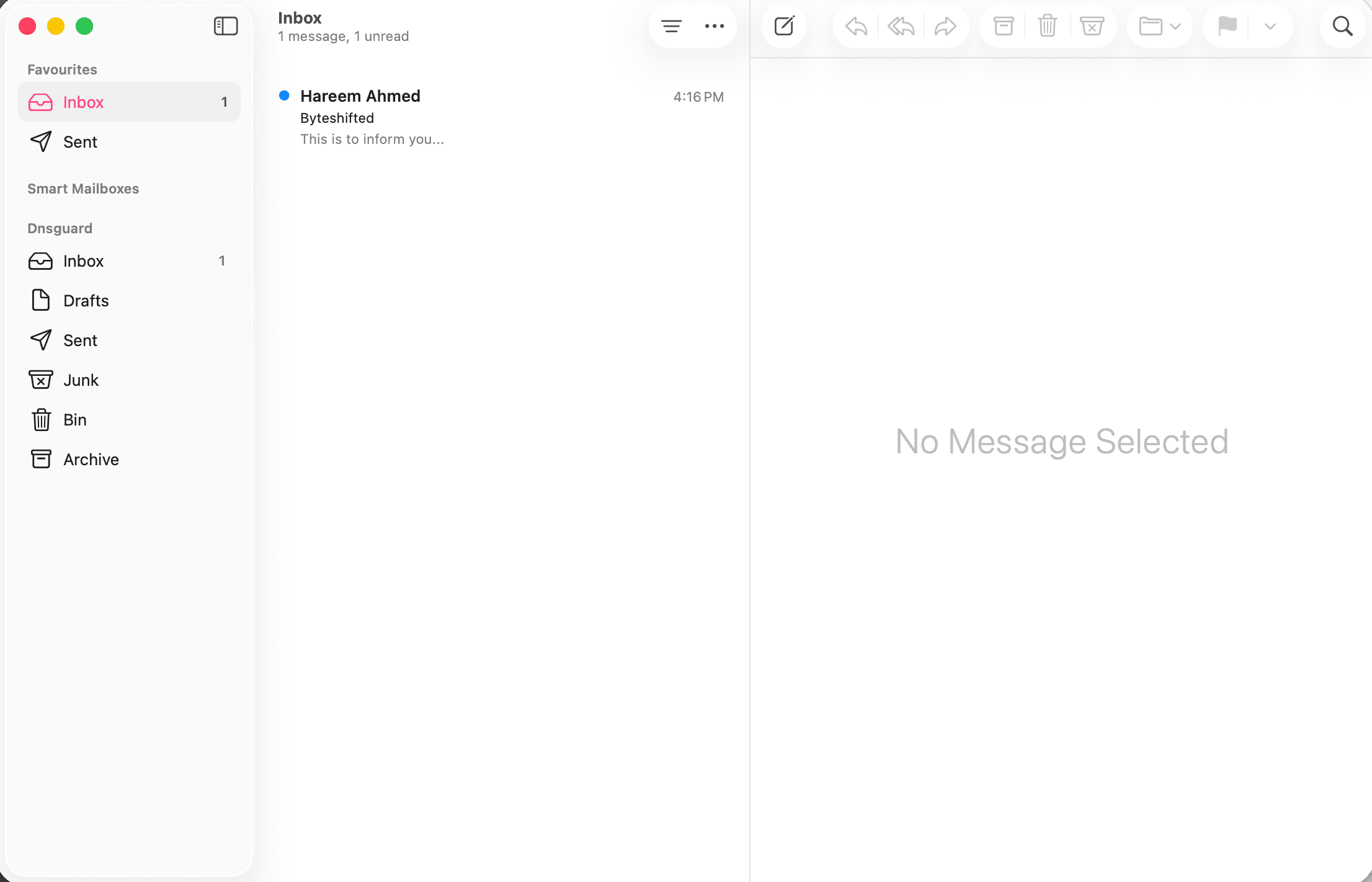
Open the Mail app on your Mac. The Add Account window may open automatically. If it does not, open it from Mail → Settings → Accounts → Add Account.
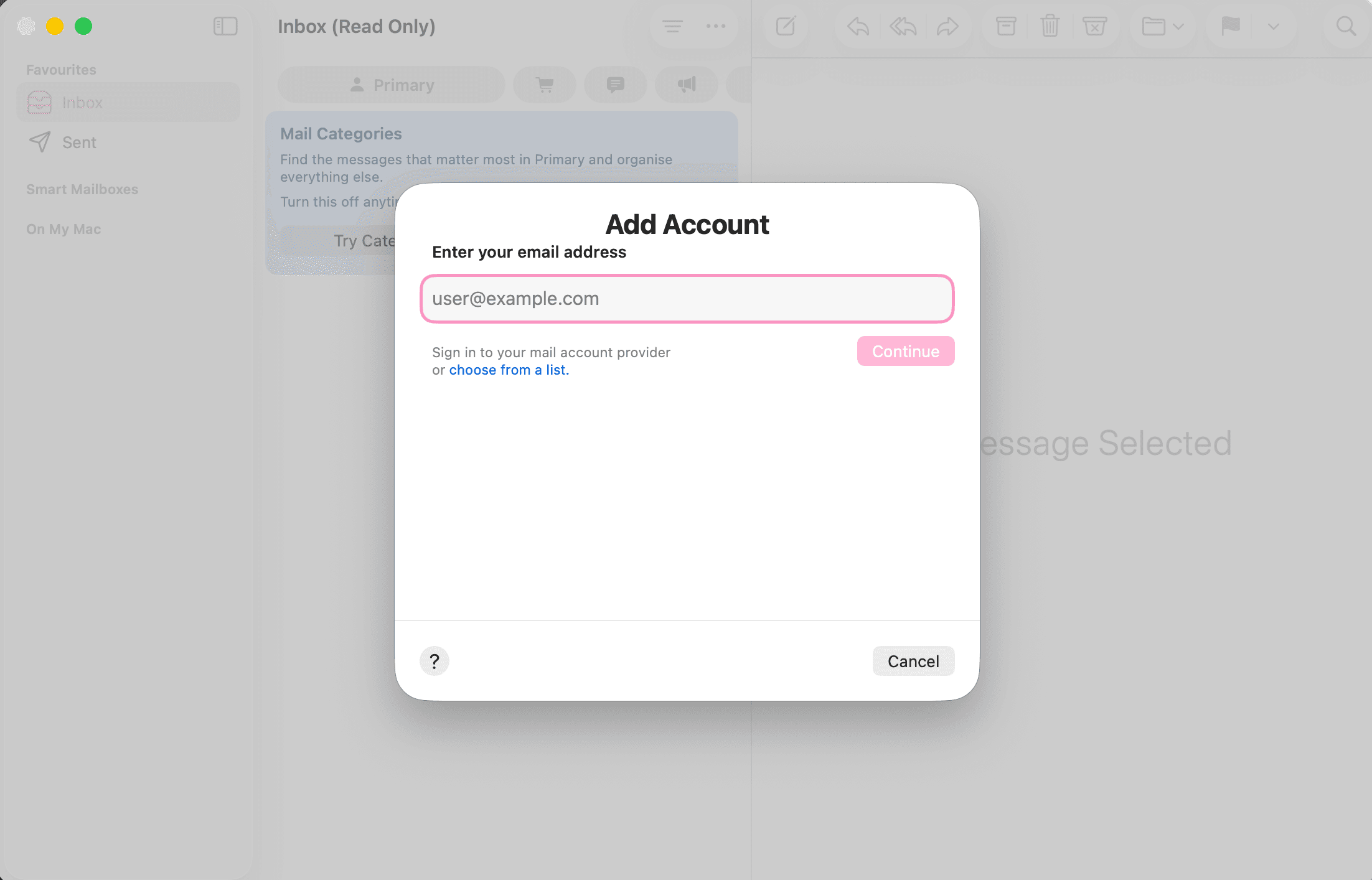
2.Choose Other Mail Account
Click choose from a list under the email field. On the provider screen, select Other Mail Account.
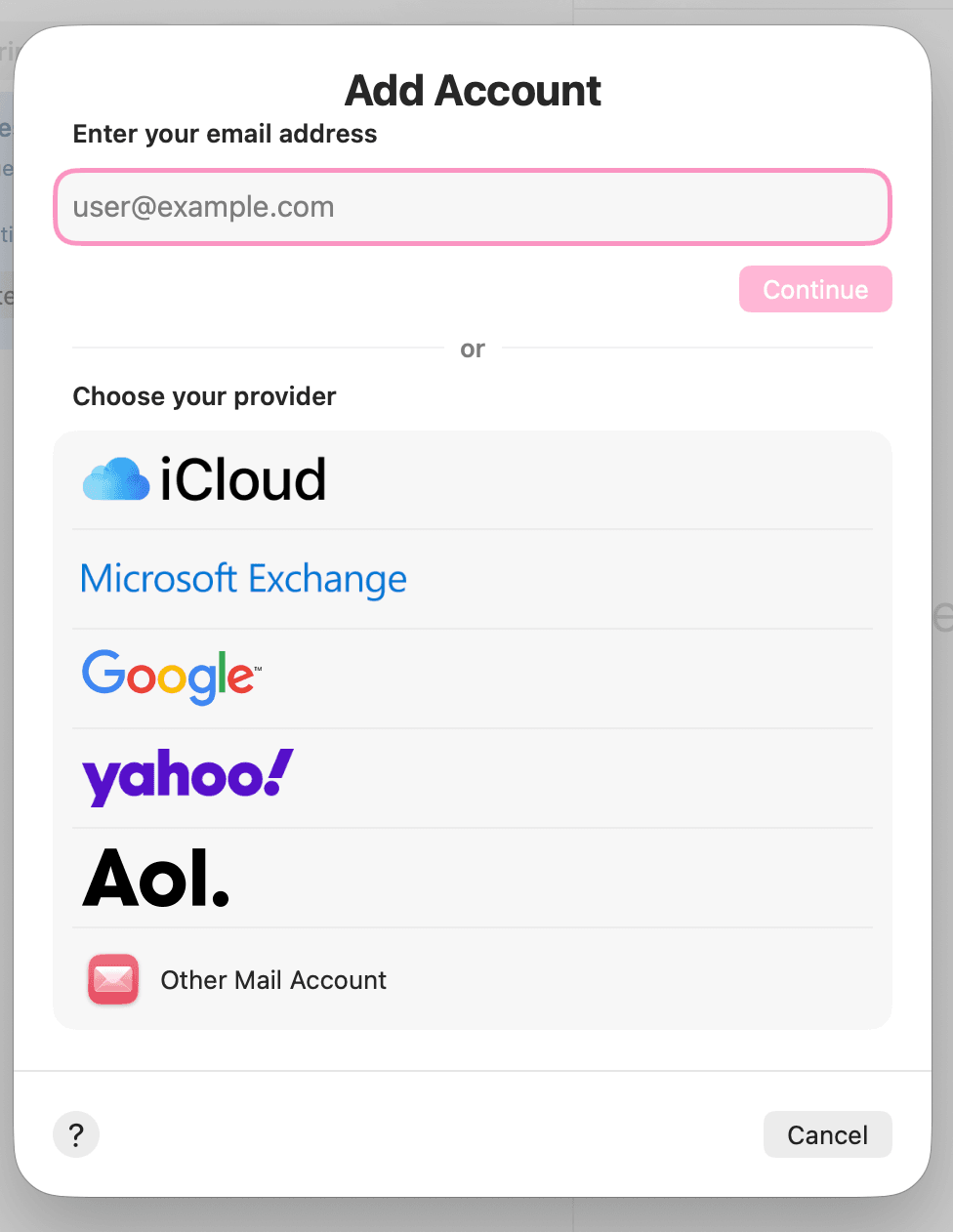
3.Enter your account details
Enter your name, full email address, and mailbox password from your Byteshifted dashboard. Click Sign In.
- Name
- Your display name
- Email Address
- user@yourdomain.com
- Password
- Your email password
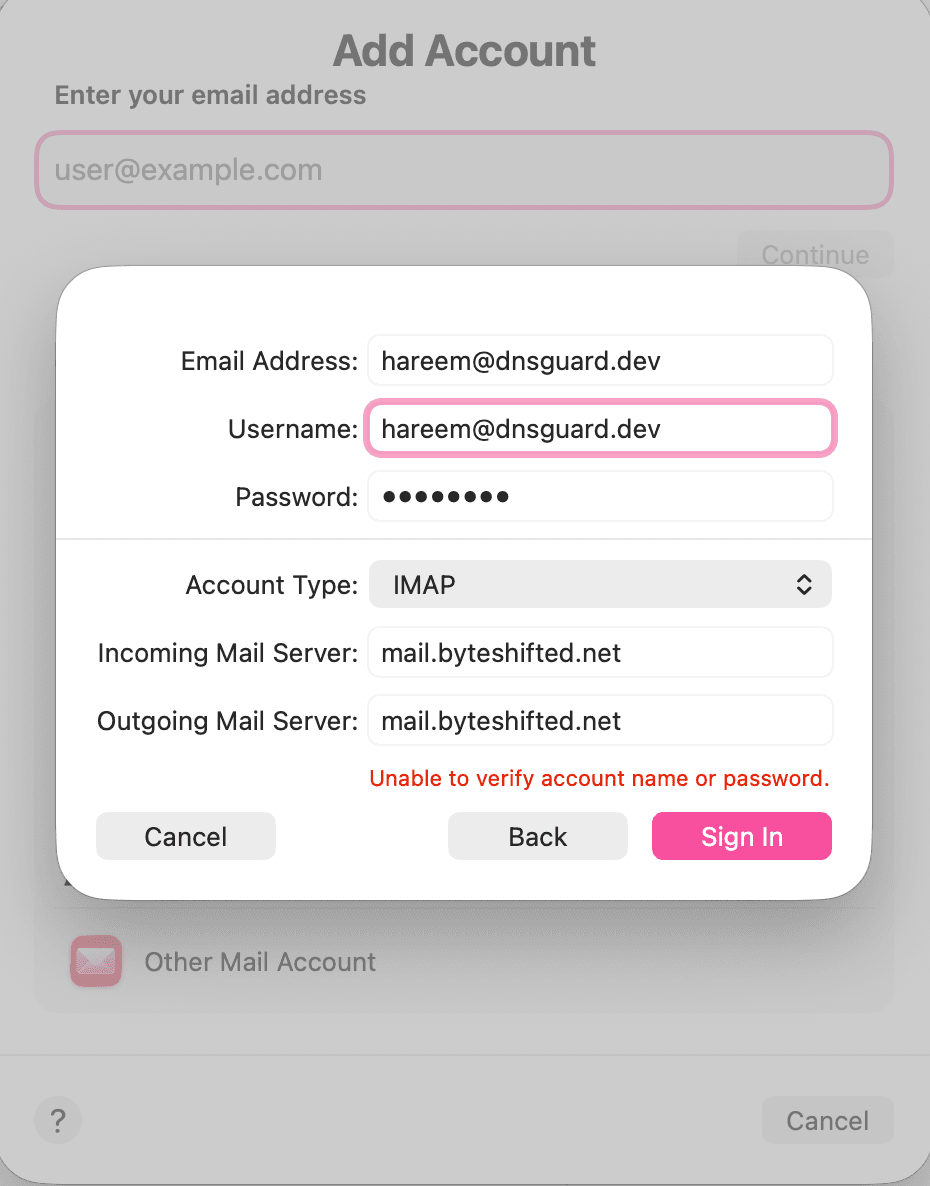
4.Enter server settings if Mail cannot verify
If you see a message that Mail cannot verify the account, enter the settings below. Set Account Type to IMAP. Use your full email address as the Username. Then click Sign In.
- Account Type
- IMAP
- Incoming Mail Server
- mail.byteshifted.net
- Outgoing Mail Server
- mail.byteshifted.net
- Username
- user@yourdomain.com
- Password
- Your email password
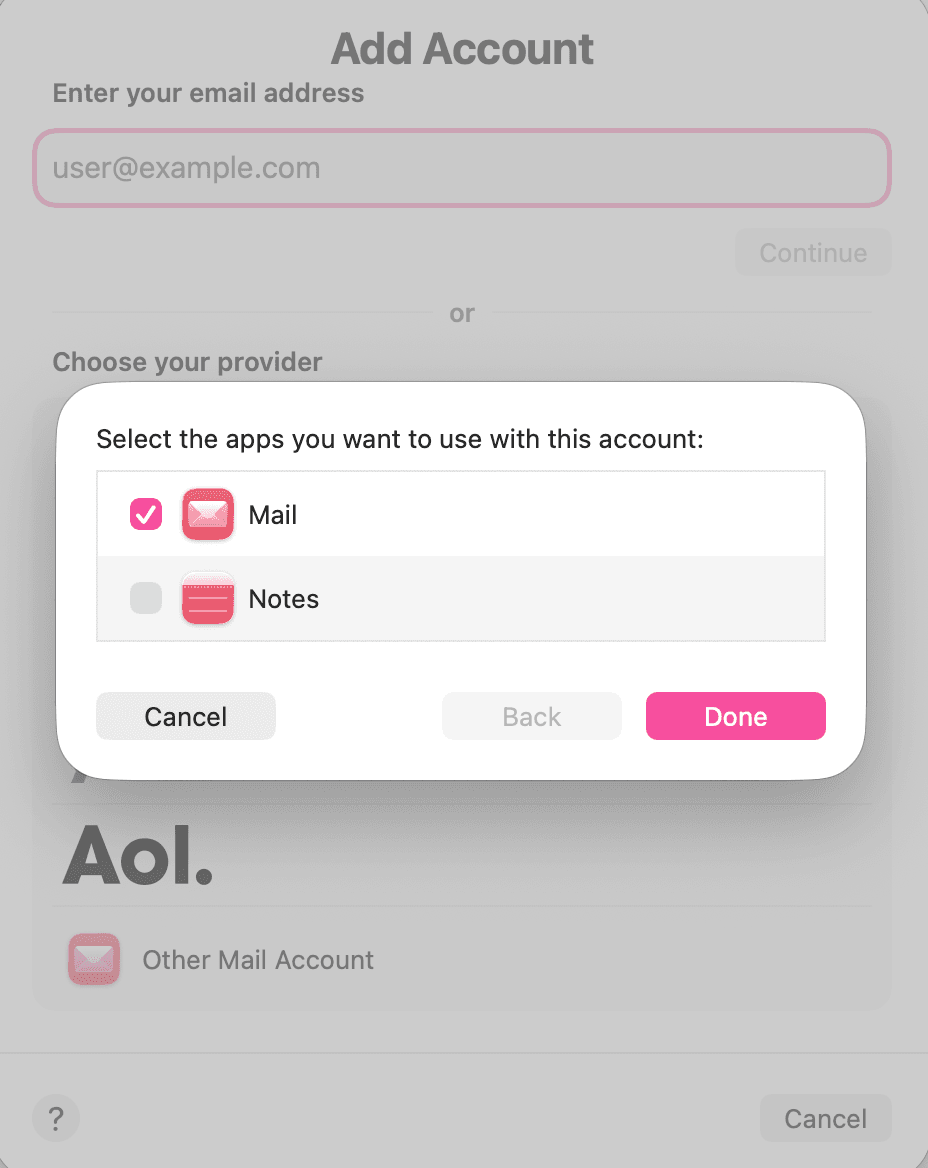
5.Enable Mail and click Done
On the app selection screen, make sure Mail is checked. You can leave Notes unchecked. Click Done.
6.Your mailbox is ready
Your account appears in the Mail sidebar. Open Inbox to read and send email with your Byteshifted mailbox.